
- Cloud computing involves creating, managing, and scaling virtual resources on demand, eliminating the need for physical hardware. In a previous guide, we looked at how to set up a Windows Server locally using Hyper-V.
- While this approach is useful for learning and testing in a contained environment, it relies entirely on your local machine’s(Your Laptop) resources and configuration. Hyper-V is a virtualization tool that represents an on-premises(Private Cloud) setup, where the infrastructure is managed and maintained manually.
- Cloud computing takes this a step further by offering virtual infrastructure that runs on remote servers, accessible via the internet, and managed by a cloud provider.
- In this documentation, we shift from on-premise virtualization to cloud-based deployment(Public Cloud) using Microsoft Azure. Azure allows you to quickly create, configure, and manage Windows Server virtual machines without needing to worry about the underlying hardware.
- Azure offers flexibility, scalability, and integrated services that make it ideal for development, testing, or production use. For this documentation, we will be building for testing and at the end of this guide, you’ll know how to deploy a Windows Server VM on Azure.
Prerequisites:
- An active Microsoft Azure account with a valid subscription
- Access to the Azure Portal
- An existing resource group, virtual network, and default subnet
- Basic familiarity with Windows Server.
Steps:
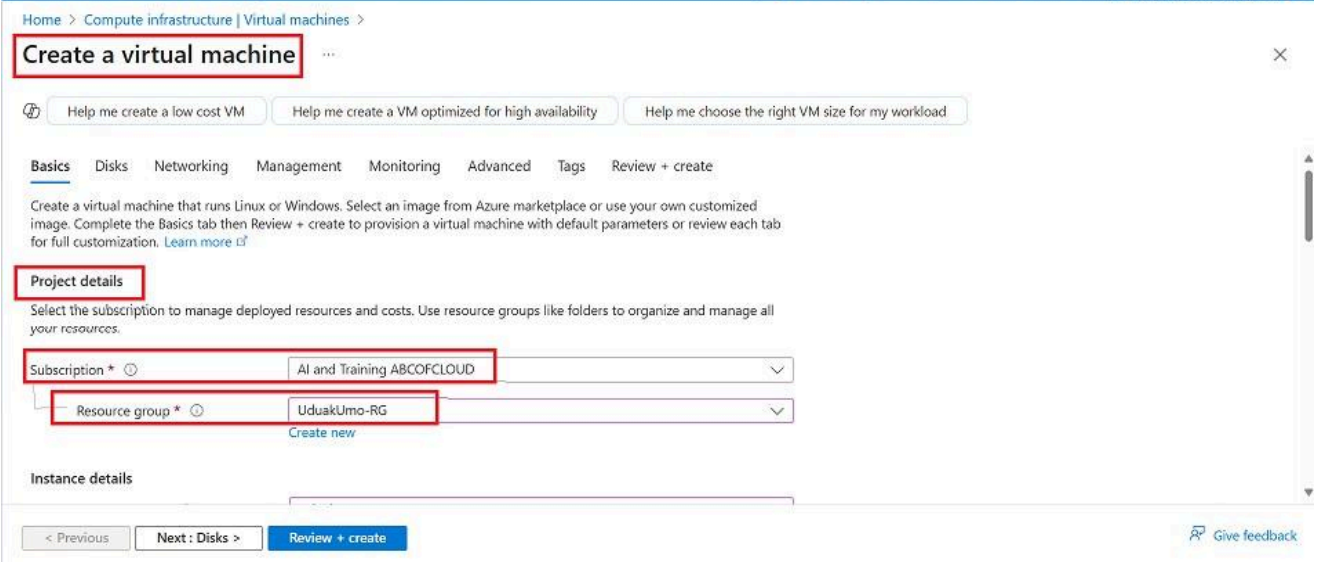
- Search for “Virtual Machine”, click on “Create”, then select your subscription and choose the resource group you previously created.

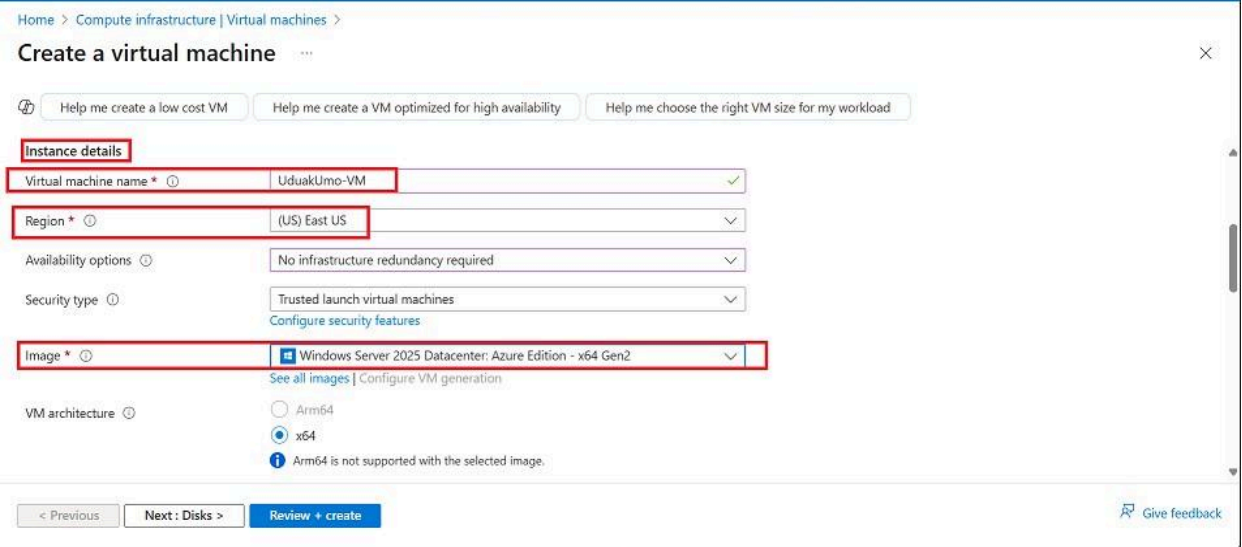
- Enter the name of your virtual machine (VM), choose a region that corresponds to the data centre where your server will be deployed, and select “Windows Server 2025 Datacenter” as the image.

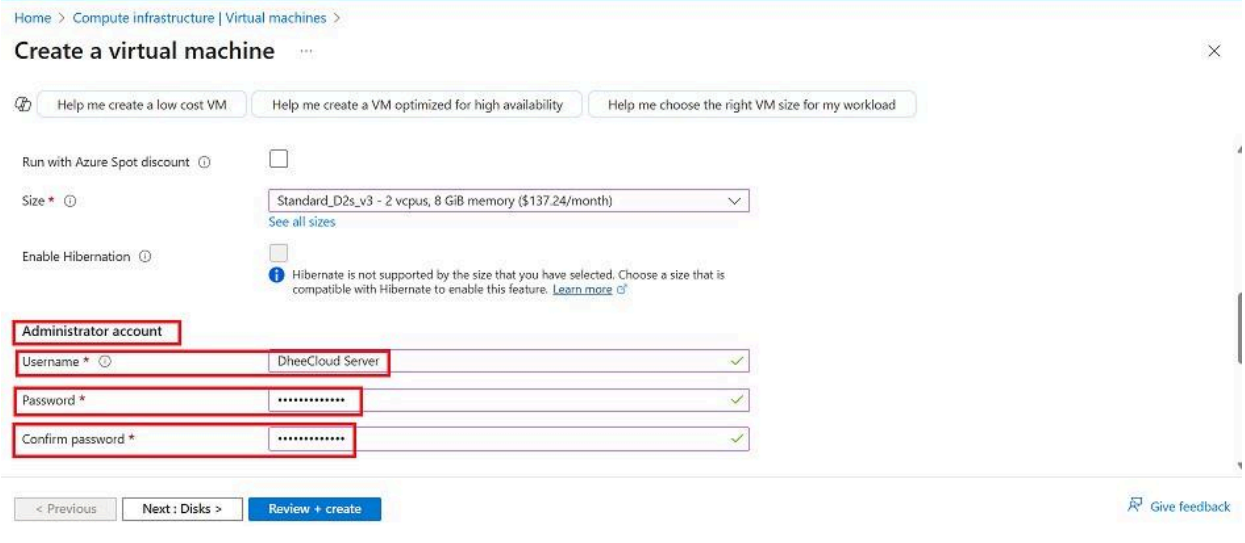
- Enter the credentials for the administrator account, including the username and password that will be used to log in to the Windows Server.

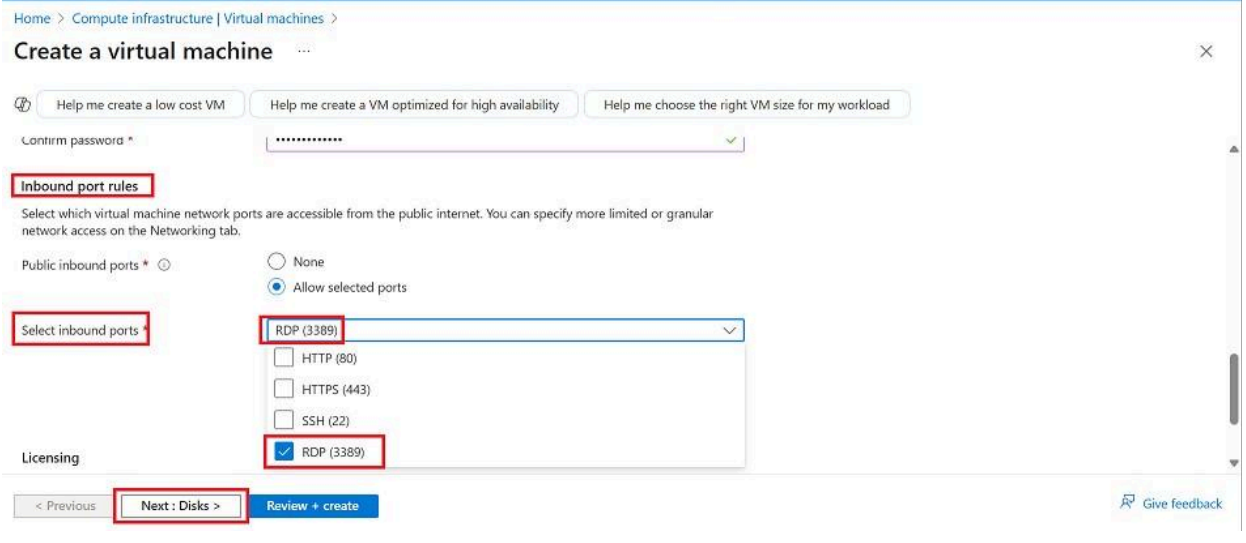
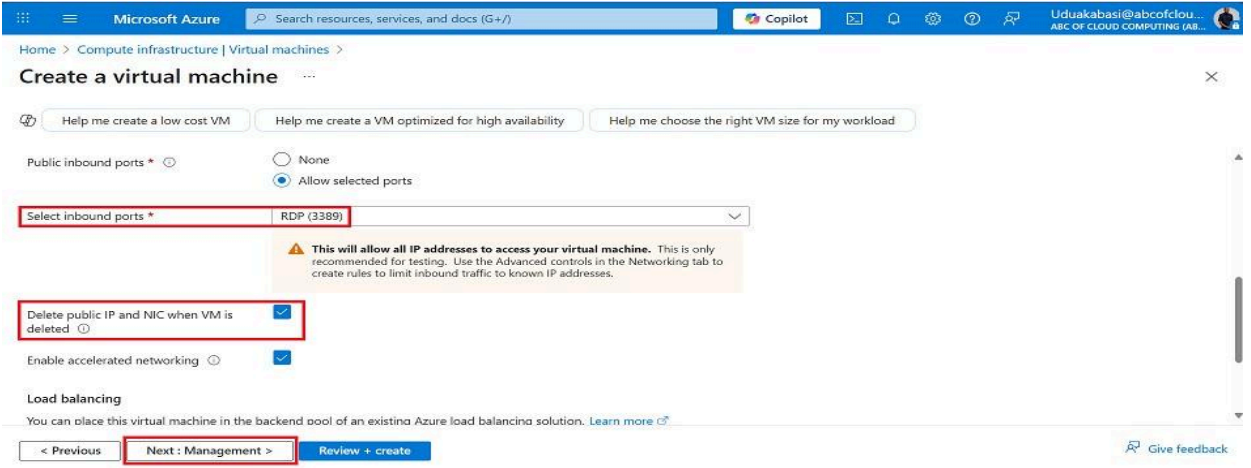
- For this article, the server is intended for Therefore, you can allow Remote Desktop Protocol (RDP) on port 3389 by selecting it under the inbound port rules. Once selected, click “Next” to continue.
- Note: In real-world or production environments, exposing port 3389 directly to the internet poses a serious security risk.

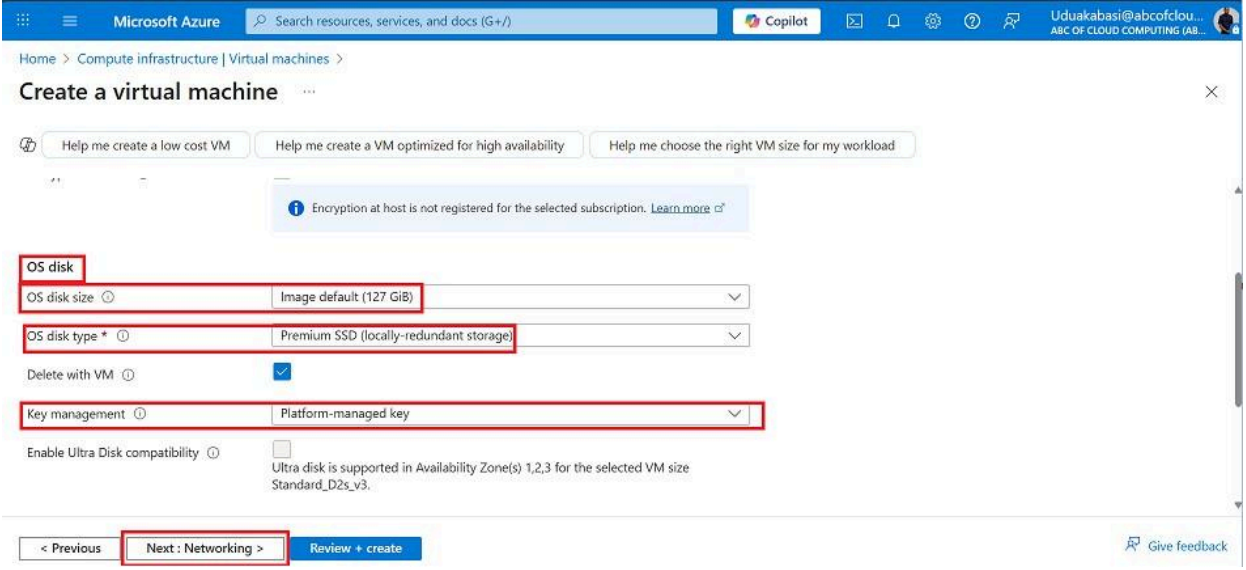
- Under the Operating System Disk section, select the default image (127 GB), choose “Premium SSD” as the disk type, and ensure the key management option is set to use a platform-managed key. Once configured, proceed to the Networking tab.

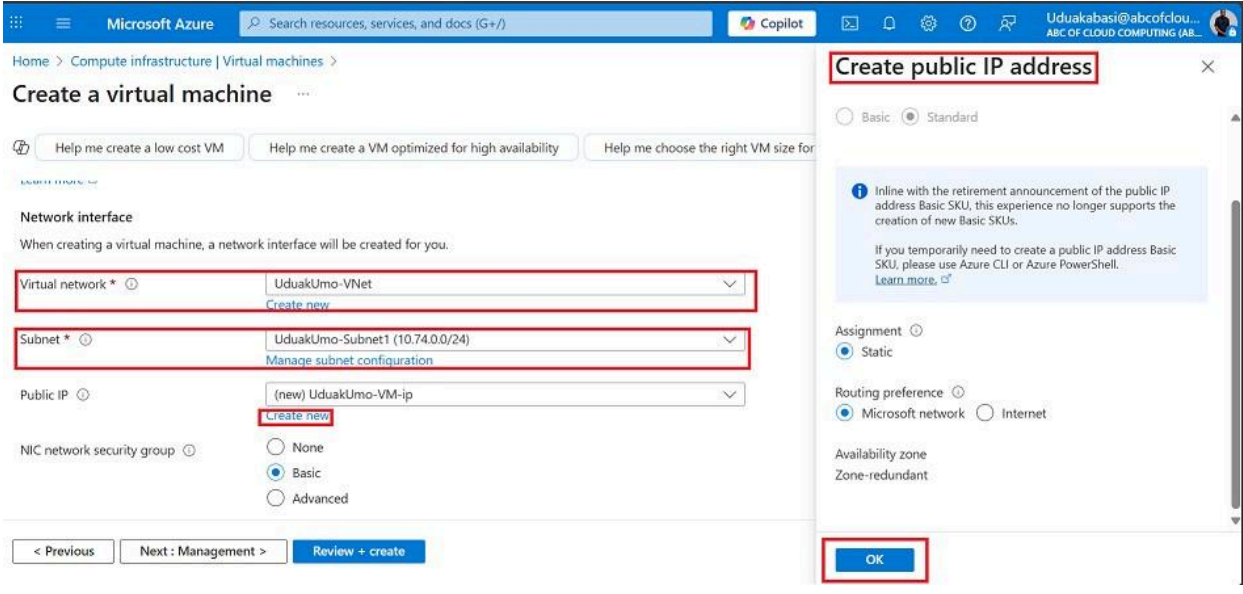
- In the Networking section, select the virtual network you previously created along with its associated subnet. Then, create a new public IP address to assign to your virtual machine.


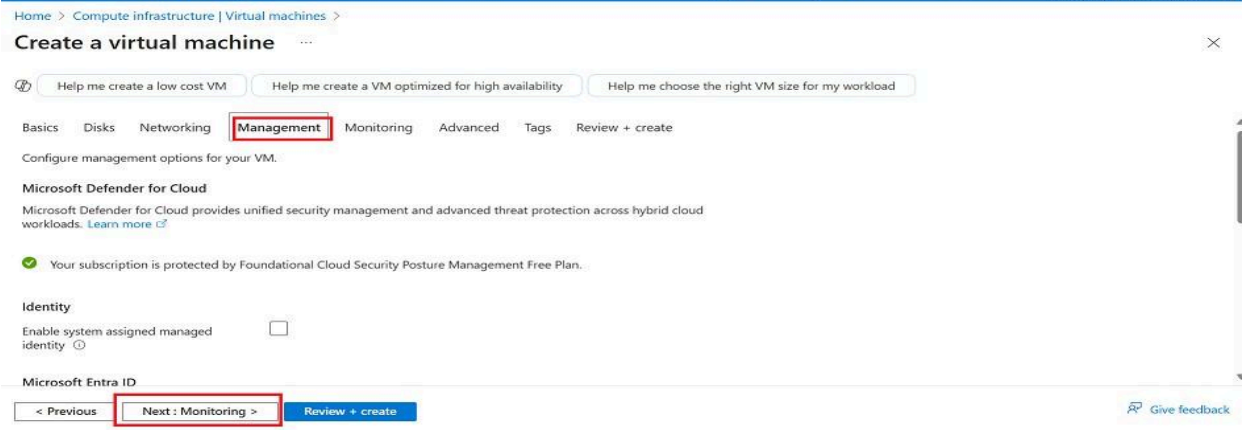
- In the Management section, leave all settings at their default values and hit Next to proceed to the Monitoring tab.

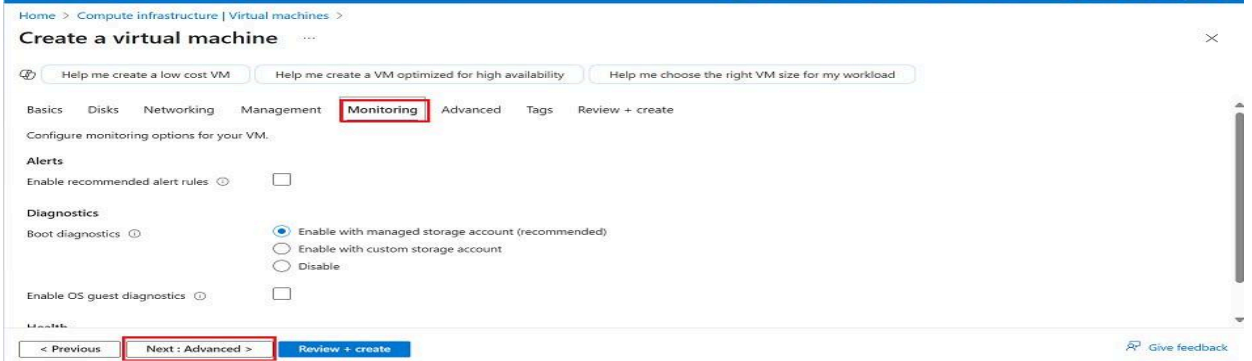
- In the Monitoring section, leave all settings at their default values and hit Next to proceed to the Advanced tab

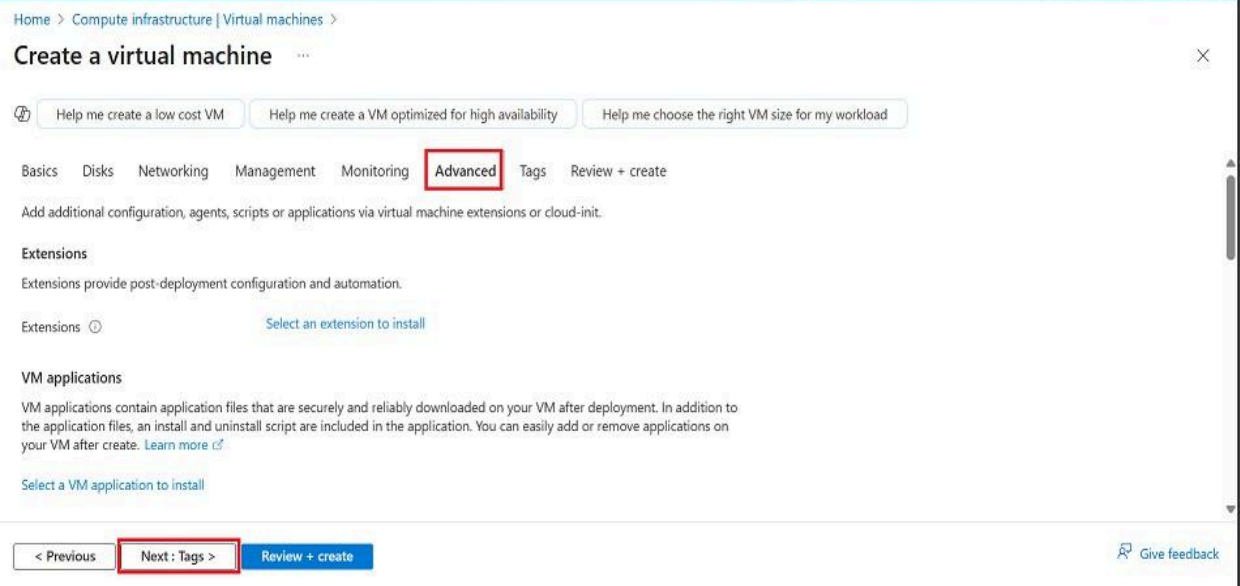
- In the Advanced section, leave all settings at their default values and hit Next to proceed to add your tags if you have any.

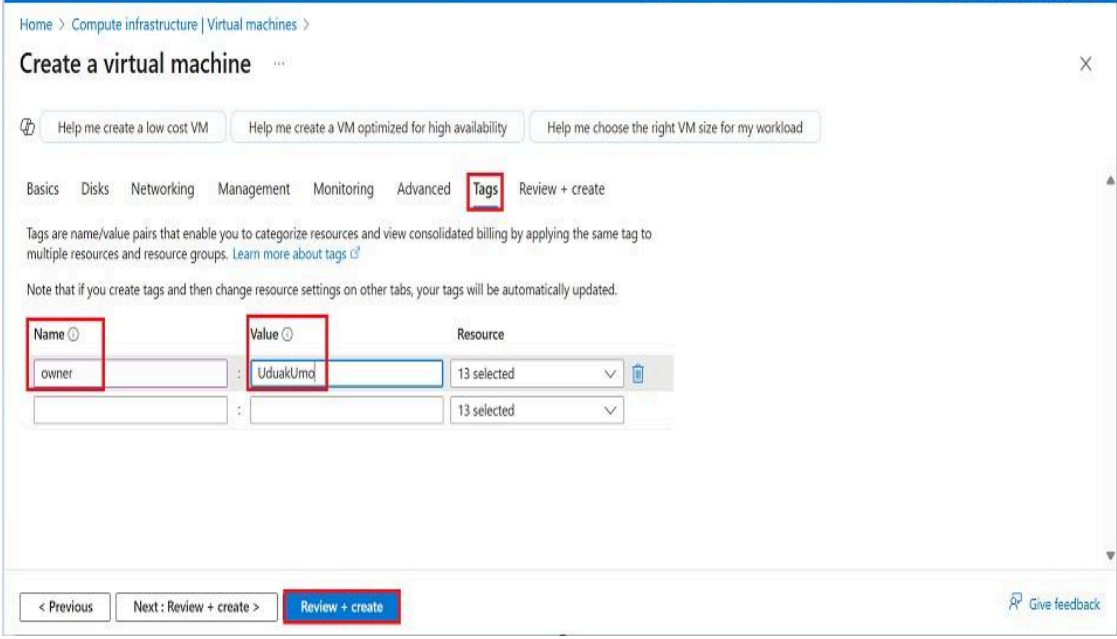
- Add your tag, under the name, you can select the owner, and for the value, input your name.

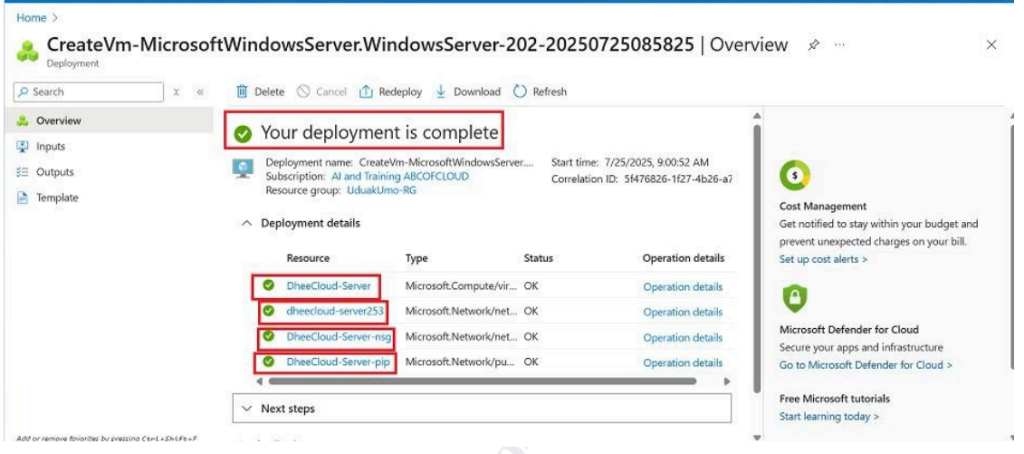
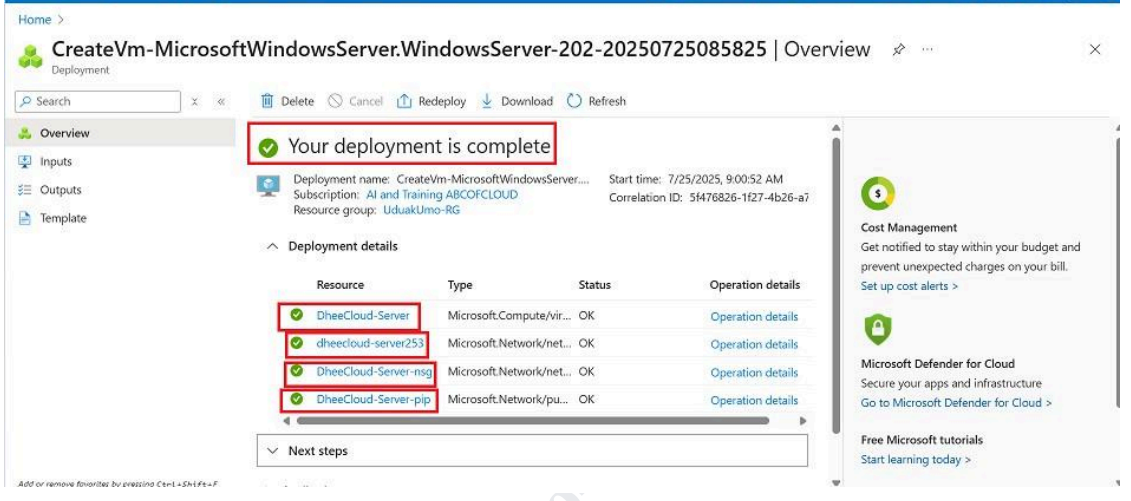
- After reviewing and creating the server, wait for the deployment to complete.Once done, you’ll see the server along with all associated resources, such as the network security group.

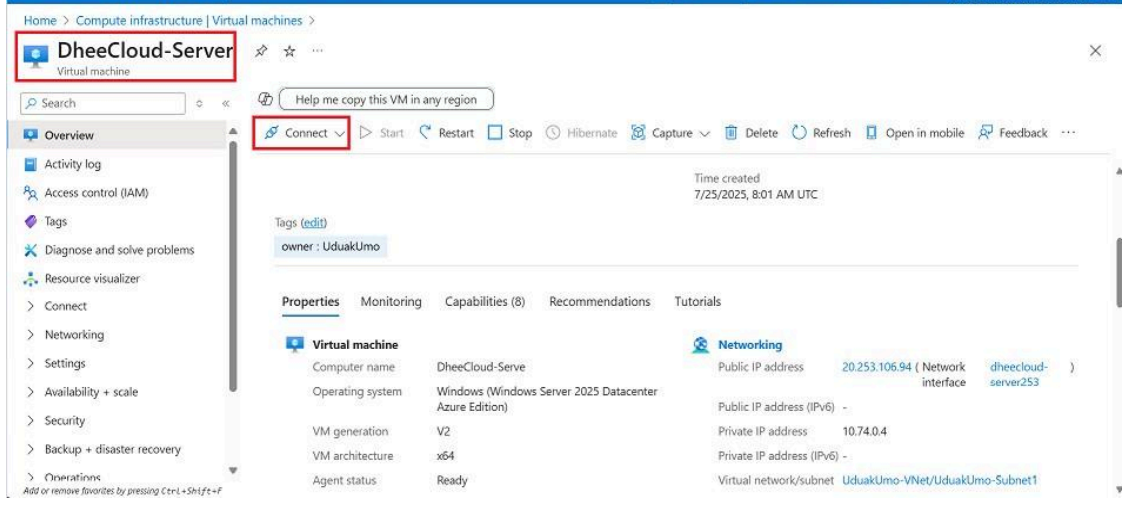
- Once deployment is complete, go to your virtual machine and click on “Connect” to access it.

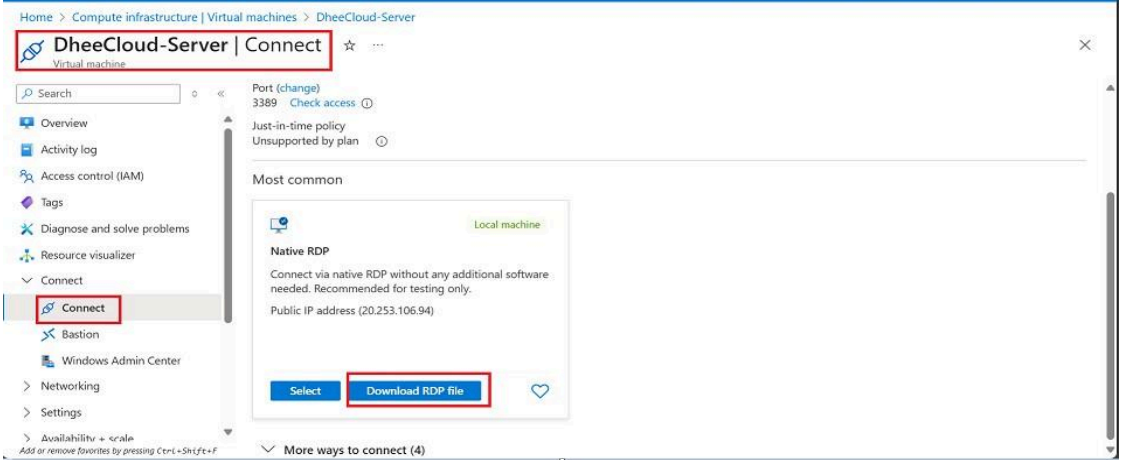
- After clicking “Connect”, download the RDP file to begin the remote desktop connection.

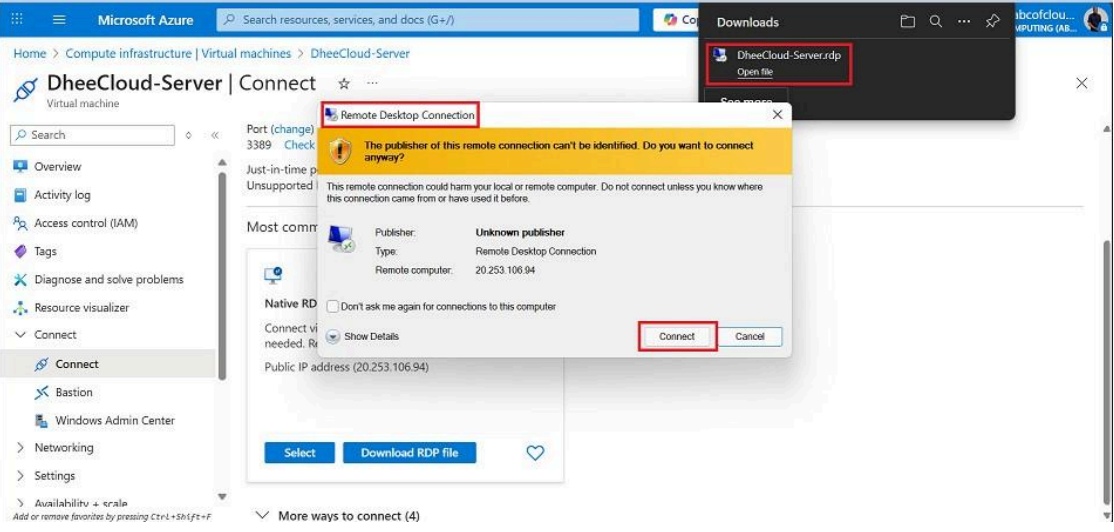
- Open the downloaded RDP file. When the connection prompt appears, click “Connect” and accept any permission requests to proceed.

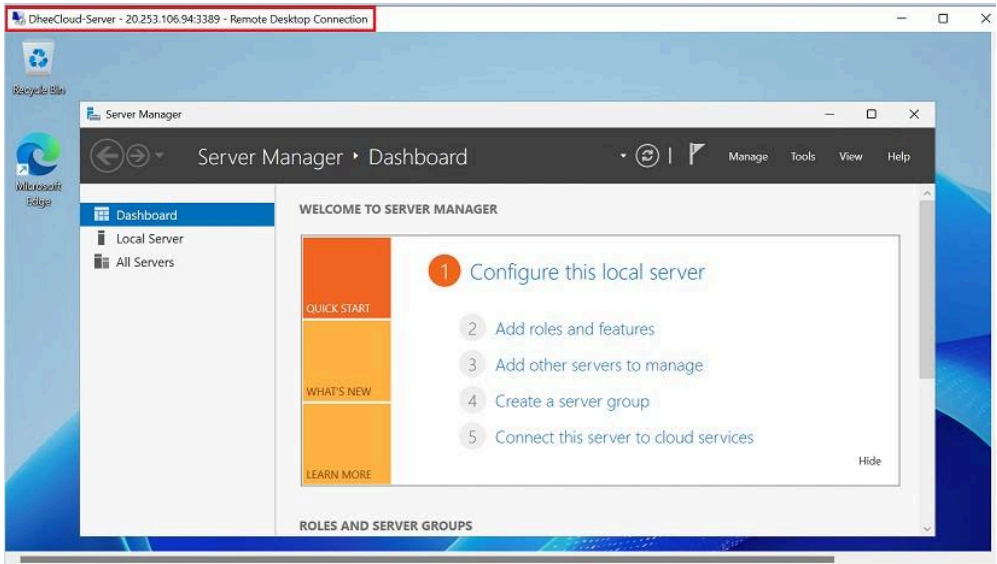
- You will be prompted to enter the username and password you set during the VM creation. After entering the credentials and clicking “Login,” your Windows Server will open.

Conclusion
In this guide, I demonstrated how to create a basic Windows Server on Azure. Please note that this setup is intended for testing purposes, which is why many options were left at their default settings.
If you’re deploying a server for a business or organization, it’s important to carefully review and configure each setting based on your specific security, performance, and compliance requirements.
For simple testing scenarios, you can follow this documentation to get your server up and running quickly.
Reminder: Don’t forget to delete your virtual machine and related resources once You’re done to avoid unexpected charges.