
NETWORK PROTOCOL
A Network Protocol is a formal set of rules or algorithms that define how two or more devices communicate over a network. These protocols ensure that data is transmitted, received, and interpreted correctly across different systems, whether it’s between computers, servers, or mobile devices.
To explain further, when you’re texting someone through Facebook, there’s an underlying network protocol making that communication possible. The protocol that determines how messages are sent, delivered, and read is governed by what we call a Network protocol.
Protocols operate at various layers of the OSI model and are essential to everything from browsing the internet to sending emails. They create the standards that allow diverse devices and platforms to work together seamlessly across the digital world.
Several key network protocols are widely used in everyday communication. Below are some of the primary protocols:
-Hypertext Transfer Protocol(HTTP)
-Transmission Control Protocol
-Simple Mail Transfer Protocol(SMTP)
-File Transfer Protocol(FTP)
-Dynamic Host Configuration Protocol(DHCP)
-User Datagram Protocol(UDP)
Hypertext Transfer Protocol (HTTP)
This is the standard protocol used for transferring data between a web server and a browser, allowing users to access websites and web content. Its more secure version, HTTPS, adds encryption through SSL (Secure Sockets Layer) or TLS (Transport Layer Security) to protect data during transmission. The “S” in HTTPS stands for “Secure,” indicating that the connection is encrypted.
Transmission Control Protocol(TCP)
This is a core protocol that ensures data is delivered accurately, reliably, and in the correct
sequence between devices over a network. It works in conjunction with the Internet Protocol (IP), which routes data packets to their intended destinations based on IP addresses. Lastly, it is worth noting that the Internet operates based on this protocol.
Simple Mail Transfer Protocol
This is the standard protocol used for sending emails across networks. It is responsible for transferring messages from an email client to an email server or between servers. This is the protocol that ensures your emails get delivered.
File Transfer Protocol
This is a network protocol used to transfer files between computers over a TCP/IP-based network, such as the Internet. It allows users to upload, download, and manage files on remote servers. FTP is commonly used for backing up data and sharing large files between systems.
Dynamic Host Configuration Protocol(DHCP)
This is a network protocol that automatically assigns IP addresses and other network configuration settings to devices on a network. This eliminates the need for manual IP configuration, making it easier to manage large networks efficiently.
User Datagram Protocol
User Datagram Protocol is a connectionless protocol that offers a fast but less reliable way of transmitting data across a network. It does not guarantee delivery, order, or error correction, which makes it lightweight and efficient for real-time applications. UDP is commonly used in situations where speed is more important than reliability, such as video streaming, online gaming, and video calls. In contrast, Transmission Control Protocol (TCP) is a more reliable option when accurate and complete data delivery is required.
NETWORK PORTS
In computer networking, a port or port number is a number assigned to identify a specific service or connection endpoint on a device. Think of it as a virtual door that allows data to enter or leave your computer, directing traffic to the right application or service.
Each service runs on a specific port. For example, HTTP uses port 80, HTTPS uses port 443, and FTP uses port 21. These ports act as communication points, allowing multiple applications to operate over a network without interference. They help route data to the correct service running on a device or server. So if you are trying to communicate with a website, you are using port 80 or port 443. Ports can be opened or blocked for security. Some ports, like port 3389, used for remote desktop access, should be kept closed unless specifically needed, as they can be a target for attacks.
Port numbers range from 0 to 65535 and are managed by the Internet Assigned Numbers Authority (IANA). This range is divided into three categories:
1. Well-known ports (0–1023) – These are the ports that are assigned to standard services like HTTP(80) and FTP(21).
2. Registered ports (1024–49151) – These are ports that can be registered and accessed by companies and developers for any particular service, like Adobe Server(Port 1102) and MS SQL
Server(Port 1433)
3. Dynamic or private ports (49152–65535) – These are client-side ports that are free to use and are temporarily assigned for client-side communications.
I feel you should also know about physical ports, which are hardware connectors that allow external devices or services to physically connect to a computer or network node. In simple terms, the things you plug into your system, whether it’s HDMI, USB, Ethernet, etc, are referred to as physical ports, and they enable communication between your device and the outside world.
Briefly, to check for an open port, you can either check and use a website or you can use the command line by entering the command ‘netstat -n’
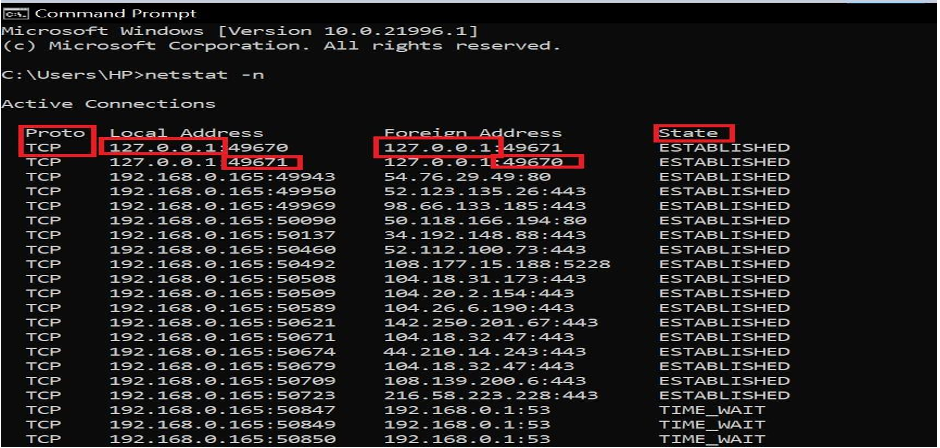
When you run the command ‘netstat -n’ in the command line interface, it displays a list of active network connections in numerical format. This includes key details such as protocol, IP addresses, ports, and connection states.
From the diagram, you can see the protocol being used, which is most commonly TCP and that has already been explained earlier in this documentation.
The Local Address refers to your computer’s IP address, and next to it is the port number that your system is using for that specific session. This is essentially the endpoint through which your computer is communicating.
Next is the Foreign Address, which shows the IP address of the server along with the port number it’s using for the connection.
Lastly, the State column shows the status of the connection, such as ESTABLISHED, TIME_WAIT, or CLOSE_WAIT. This gives insight into whether a connection is currently active, closing, or idle, and that is where you know the status of a connection.
OSI MODEL – OPEN SYSTEM INTERCONNECTION MODEL
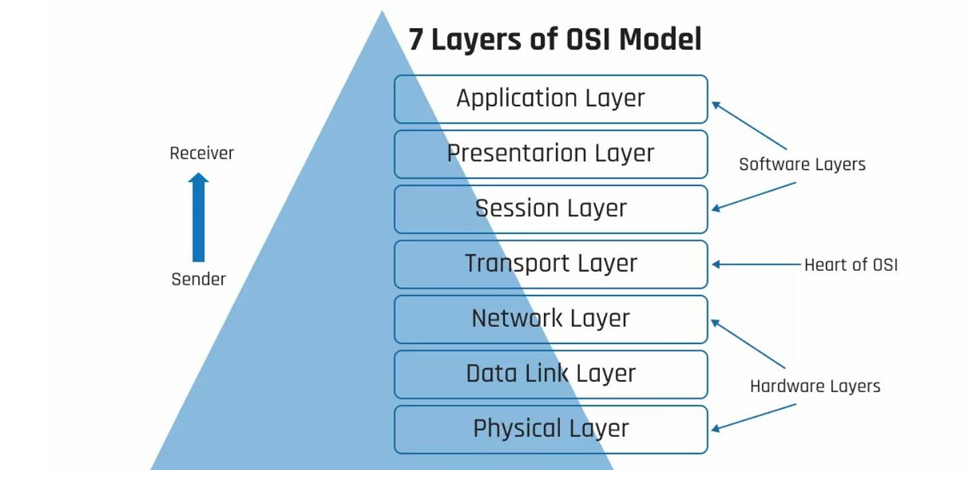
The OSI Model is a visual framework that represents how data is transmitted across a network. It’s basically a way to understand how the internet works behind the scenes. The model is divided into layers, with each layer handling a specific category of networking functions, from how data is packaged and sent to how it’s delivered and displayed to the end user.
Each layer in the OSI Model builds on the one below it, making it easier to troubleshoot, design, and understand network systems. Whether you’re dealing with physical cables or web applications, there’s a layer in the OSI model responsible for it. In short, it’s a simplified map of how devices talk to each other on a network.
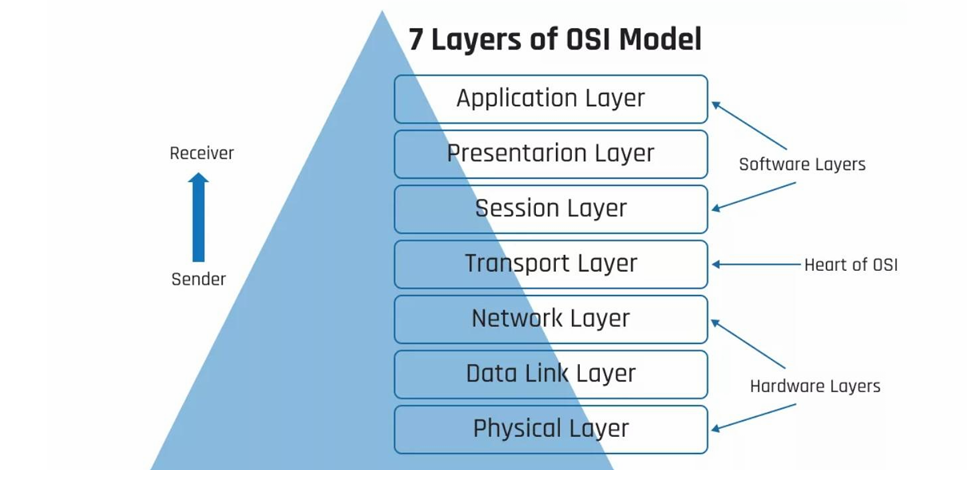 From the diagram above, we can see that the OSI model has seven layers, which can be divided into the software layers, Hardware layers and the central point, which is the heart of the OSI Model.
I will now be explaining the various layers while painting a picture of how they would work in a real-life situation where you are sending a message online to your friend.
LAYER 7 – APPLICATION LAYER
The Application Layer is the topmost layer of the OSI Model and serves as the point where users directly interact with the network. It’s the layer where human-computer interaction happens, allowing applications to access network services.
This is where protocols like HTTP, FTP, SMTP, and DNS operate, enabling functions such as browsing the web, sending emails, and resolving domain names. Essentially, anytime you use a networked app, you’re working at the Application Layer. A networked app is any application that requires an internet connection or local network to send or receive data, and a good example is Facebook, which I will be using to create a visual image.
VISUAL REPRESENTATION: When you send a message from Facebook Messenger on your phone to the same app on your friend’s phone, you’re interacting with the Application Layer of the OSI Model. This is the layer responsible for enabling communication between networked applications(like Facebook). It’s where the data begins before moving down through the other layers to reach its destination(your friends’ App).
LAYER 6 – PRESENTATION LAYER
The Presentation Layer is responsible for making sure that the data sent from one device can be properly understood by another. It formats and translates the data so it can be usedby the application layer above it.
This is also the layer where encryption and decryption happen, ensuring that data is secure during transmission. In simple terms, the Presentation Layer acts like a translator, meaning it prepares data to be readable on both ends of the communication, while keeping it secure along the way.
VISUAL REPRESENTATION: When you send the message to your friend, your computer doesn’t understand it the same way you do. So, the message is converted into a machine-readable format like ASCII, Unicode, or binary data so the system can process and transmit it properly across the network.
LAYER 5 – SESSION LAYER
The Session Layer is responsible for establishing, managing, and terminating sessions between devices. It ensures that a connection is maintained for the duration of a data exchange and handles the opening and closing of communication sessions. This layer plays a key role in controlling ports and sessions, making sure that data flows in the right order and without interruption. It’s what keeps a session active during tasks like logging into a remote server or maintaining a video call.
VISUAL REPRESENTATION: Think of it as a communication line created for you and your friend to chat. The Session Layer opens that communication line when the conversation starts, keeps it open while messages are exchanged, and then closes it once the chat ends. This session ensures that the communication stays organized and active only as long as it’s needed.
LAYER 4 – TRANSPORT LAYER
The Transport Layer is the heart of the model and is responsible for delivering data across the network reliably or quickly, depending on the need. It uses transmission protocols like TCP (Transmission Control Protocol) for reliable and ordered delivery, while UDP (User Datagram Protocol)is used for faster, connectionless communication.
This layer breaks data into chunks called segments and ensures they are sent to the right application on the receiving device. Whether it’s streaming a video or sending an email, the Transport Layer chooses the right protocol based on the use case.
VISUAL REPRESENTATION: This is where Facebook decides how to deliver the message. If it wants to make sure your message arrives completely and in the right order, it uses TCP, but if you’re on a Facebook voice or video call, the Transport Layer may switch to UDP because it is real-time communication, and what matters here is speed over reliability.
LAYER 3 – NETWORK LAYER
The Network Layer is responsible for routing data across different networks. This is the layer where routers operate, making decisions about the best physical path for data to travel from the sender to the receiver. It works with IP addresses to identify devices on the network and determines how data packets should be forwarded. The data is always received as packets here.
VISUAL REPRESENTATION: At this layer, think of your message like a letter being mailed. The sender’s IP address(Your IP) and the receiver’s IP address(Your Friend’s IP) are like the return and destination addresses on the envelope. The Network Layer takes care of stamping those addresses on your data so it knows exactly where to go. This layer ensures it gets routed through the right networks to the correct destination.
LAYER 2 – DATALINK LAYER
The Data Link Layer is responsible for the direct transfer of data between devices on the same network. This is where network switches and bridges operate. It ensures that data is delivered to the correct device on a local network, using MAC addresses (not IP addresses). This layer handles things like framing, error detection, and flow control, making sure the data is packaged correctly and reaches the right hardware on the network.
VISUAL REPRESENTATION: At this stage, your message is broken into frames, and each frame gets tagged with the MAC address of your device (the sender) and your friend’s device (the receiver). Unlike IP addresses that work across networks, MAC addresses are used to make sure the message reaches the right device within the same local network.
LAYER 1 – PHYSICAL LAYER
The Physical Layer is the foundation of the OSI Model. It deals with the actual transmission of raw bits (0s and 1s) over a physical medium such as cables, fibre optics, or even wireless signals. This is where devices like hubs and network cables operate. It’s the layer that makes all other layers possible by providing the literal path for data to travel.
VISUAL REPRESENTATION: By the time your message gets to the Physical Layer, everything has already been packaged and addressed in the layers above. Now, the Physical Layer converts the entire message into raw bits, just 0’s and 1’s and sends those bits across a physical medium like a cable or wireless signal. It makes sure those 0’s and 1’s physically leave your device and start their journey to
your friend’s device.
In Conclusion, the OSI Model explains how communication is carried out over the Internet by visually breaking down how data is transmitted layer by layer. From the explanation and visual representation in this documentation, you can see that each layer has a specific role in preparing, sending, receiving, and understanding data.
So when you send a simple Facebook message, it travels through all seven layers, starting from the Application Layer, where the message is created, down to the Physical Layer, where it’s converted into 0s and 1s and sent out. Once the message reaches your friend’s device, the same process happens but in reverse. The bits are received at their Physical Layer, rebuilt into frames at the Data Link Layer, routed to the right destination at the Network Layer, and so on until they reach their Application Layer, where they finally appear as a message they can read.
The OSI Model helps us understand what’s going on behind the scenes in every online interaction. It’s not just theory; this is what happens behind the scenes in seconds, and now you understand it. Always revisit this documentation to refresh your memory on Network Protocols, Network Ports and the OSI model.