
Introduction
Before understanding the need for VNet peering, it is important to first understand what a virtual network is. A virtual network, also known as a VNet, is an Azure networking service that allows Azure resources such as virtual machines and services to communicate securely with each other using private IP addresses. Each virtual network is defined by an IP address range, and within it, you can create subnets. Subnets are used to divide the network into smaller segments, which helps with organization, security, and traffic control, such as separating workloads or departments within the same network. By default, resources within the same virtual network and across its subnets can communicate with each other without any additional configuration. However, when resources in one virtual network need to communicate with resources in another virtual network, there is no automatic connection between them. Without a connection mechanism, communication between these networks will fail. This is where Azure VNet peering becomes necessary.
What is Azure VNet Peering
Azure VNet peering is a networking feature that allows two virtual networks to be connected so that resources in each network can communicate with one another. It is used when resources in one virtual network need to securely access resources in another virtual network, which would otherwise be isolated. VNet peering allows resources to interact privately and securely as if they were within the same network, without requiring public IP addresses or additional gateways. This makes communication between the two networks seamless and efficient, which is why it is important to understand VNet peering in case you need to enable communication between separate virtual networks.
In this article, we will walk through a step-by-step guide in the Azure Portal to show how it is created.
Prerequisites
You will need an active Azure account with a valid subscription to create the virtual networks and the virtual machines that will communicate across different networks. Additionally, you should have a basic understanding of Azure networking, sufficient permissions to create networking resources, and ensure that the virtual networks utilise non-overlapping IP address ranges.
Step-by-Step Guide to Create Azure VNet Peering
Step 1:
Sign in to the Azure portal and create two virtual networks. Ensure each VNet has a unique, non-overlapping IP address range and at least one subnet.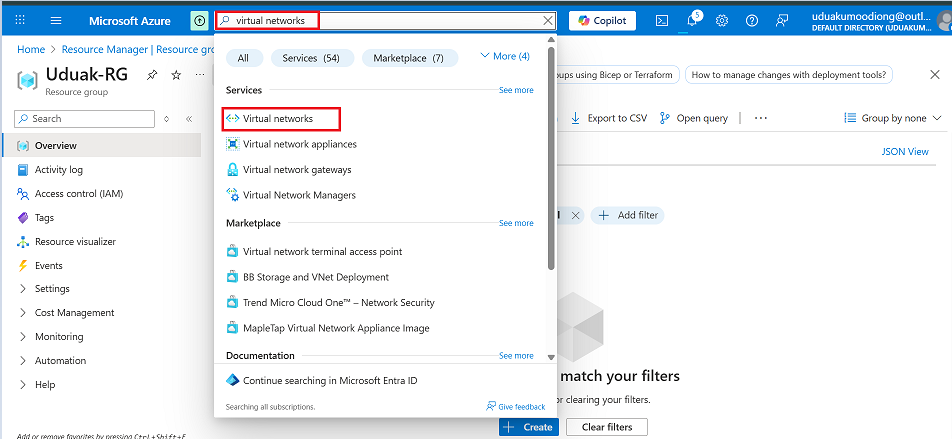


-For security, this article is for demonstration purposes only. In a real-world scenario, you should follow your organization’s security specifications, but here we will keep all settings at their default values.
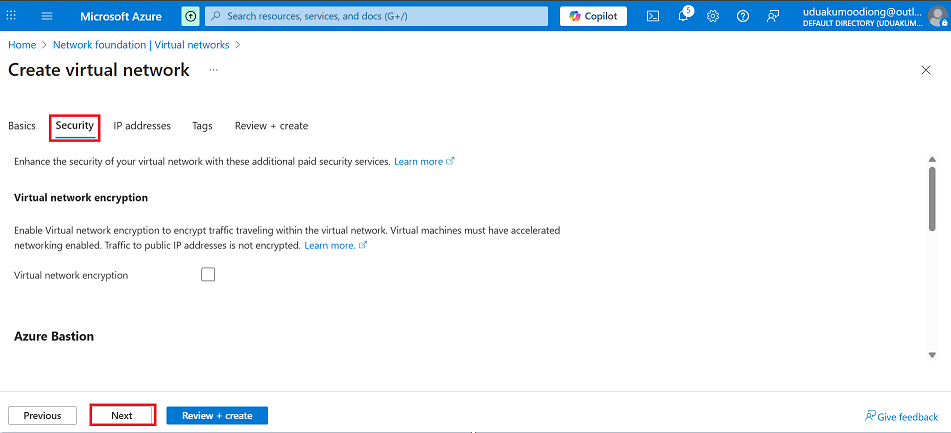
-Assign an IP Address to the First Virtual Network
 -Create a subnet in your network


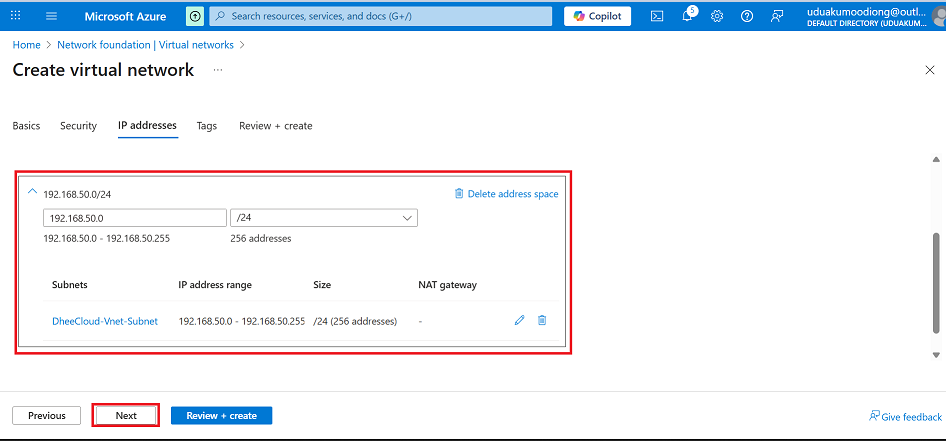

-Follow the exact steps to create your second network, but with a different IP so they don’t overlap. I used 192.168.50.0/24 for the first, so for the second, I am using 192.168.60.0/24


Note: Due to my subscription limitations, I had to create the virtual networks in a specific region to be able to deploy a virtual machine. However, the steps and process for creating a virtual network remain the same. The only difference you may notice is the region I will be using when creating the virtual machine.
Step 2: Deploy Resources
Create a virtual machine in each virtual network. This helps you test and confirm connectivity after peering is complete.
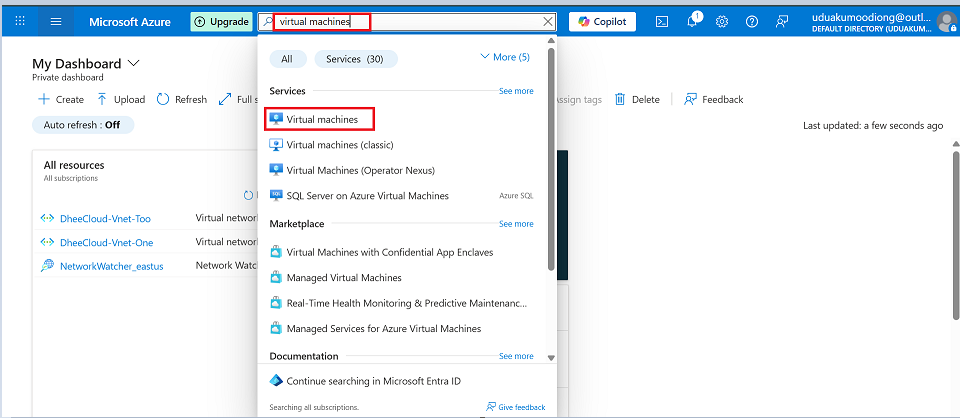
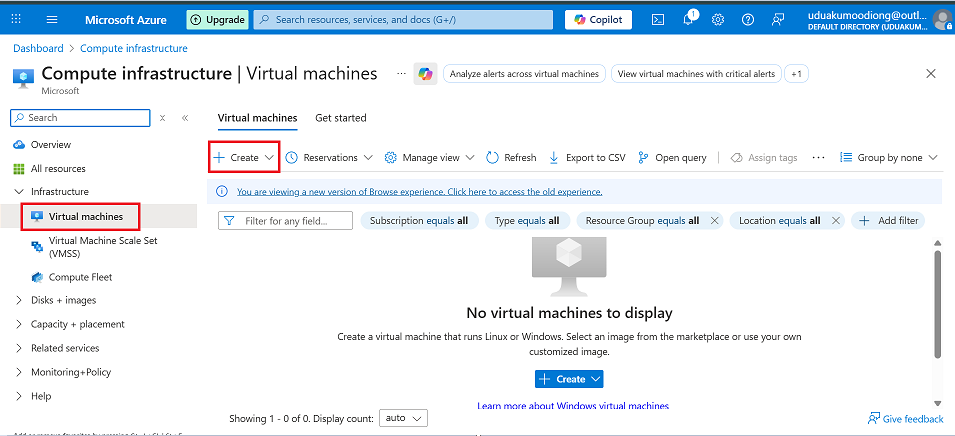


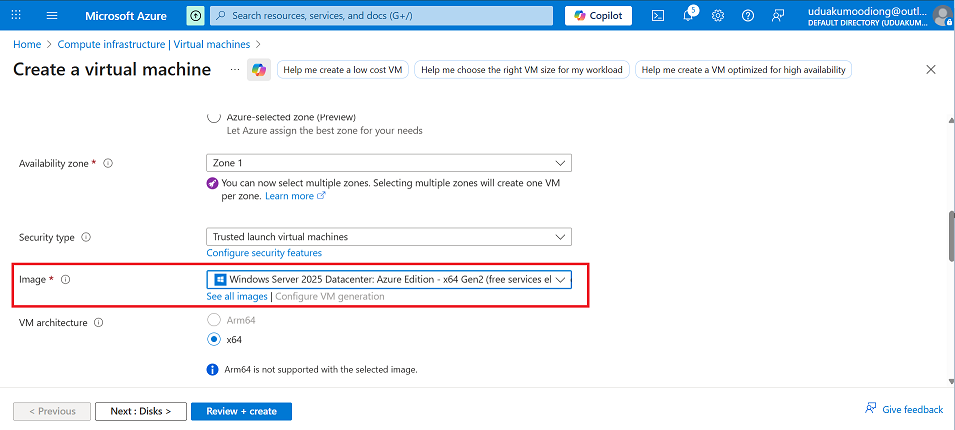
-For this demonstration, we will be making use of a Windows server
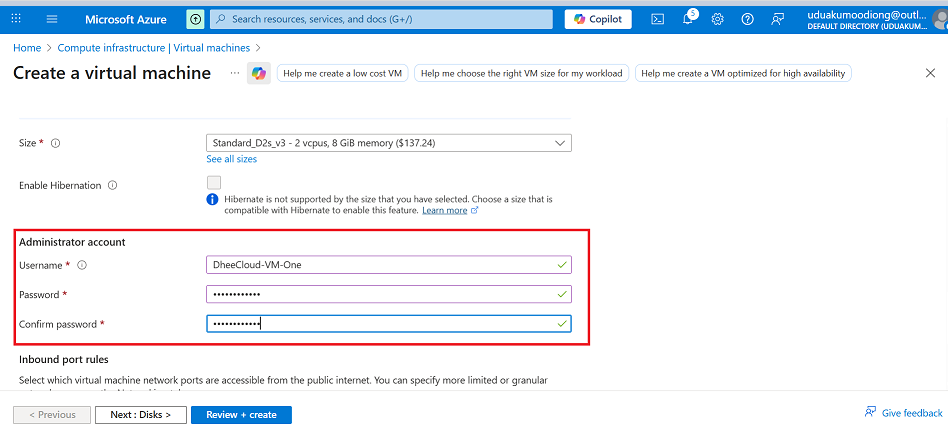
-Input the Login credentials for your Virtual Machine
-This setup is strictly for testing purposes, so the RDP port is left open to allow connections. In a real production environment, it is recommended to avoid exposing RDP publicly and instead utilise more secure options, such as Azure Bastion or SSH, depending on the operating system.
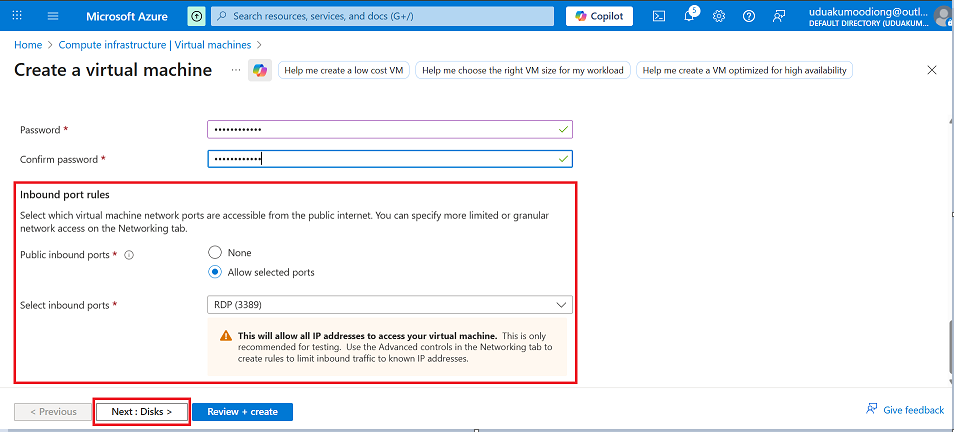
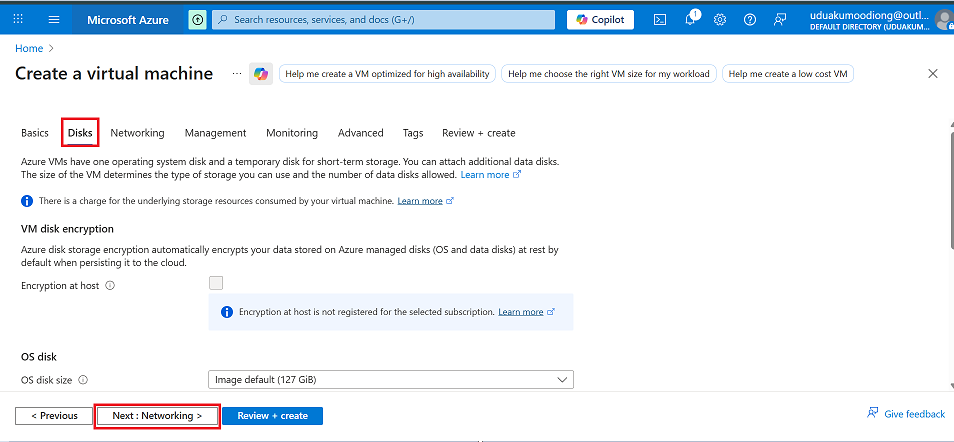
-Everything under Disks will be left as the default, then proceed to networking
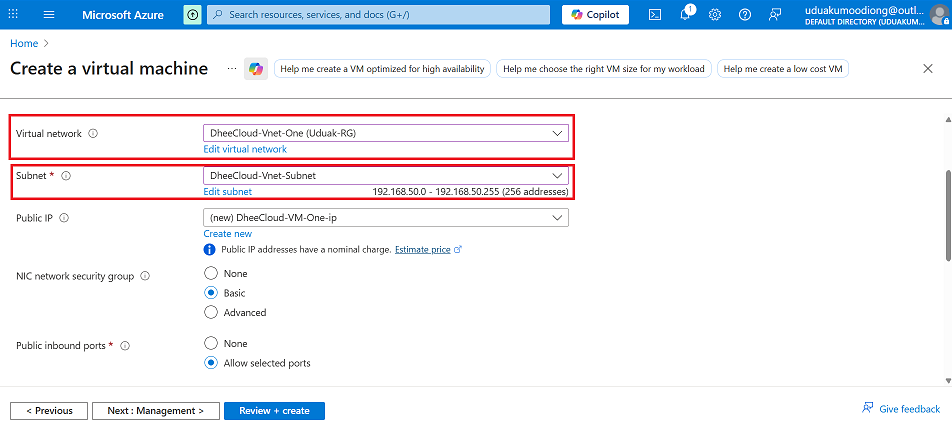
-Under networking, select the First Vnet you created .
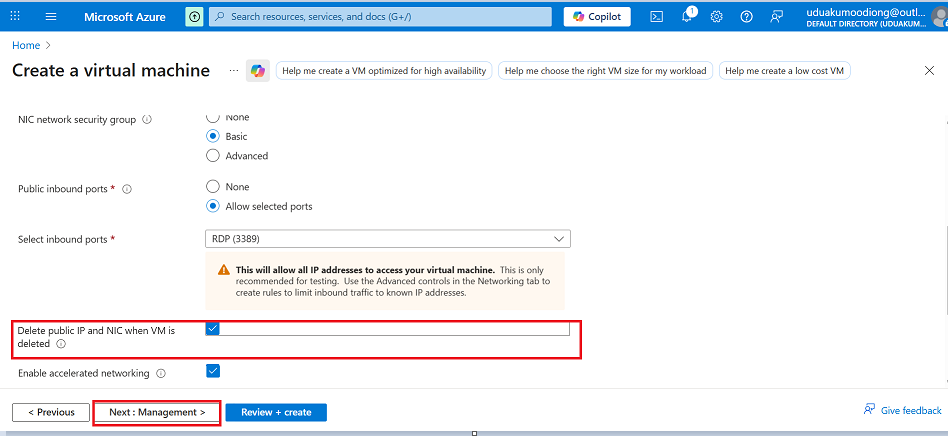
-Leave everything in management, monitoring, and advanced as default since this is just a demonstration, then review and create
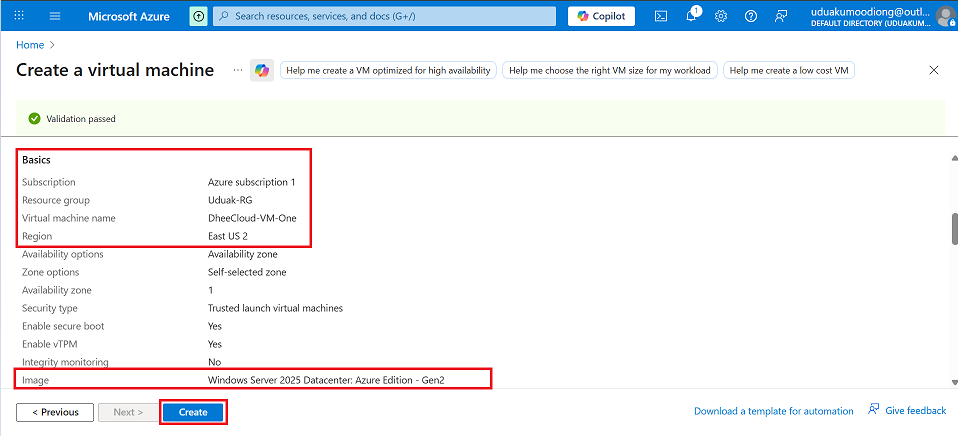
-Follow exact same process and create your second VM in your second Network

Step 3: Connect to the Virtual Machines
Connect to both virtual machines and verify that they cannot communicate with each other before configuring VNet peering. This confirms that there is no existing network connectivity between the virtual networks.
-Connect to VM-1


-Click on the downloaded RDP File and connect to your First VM
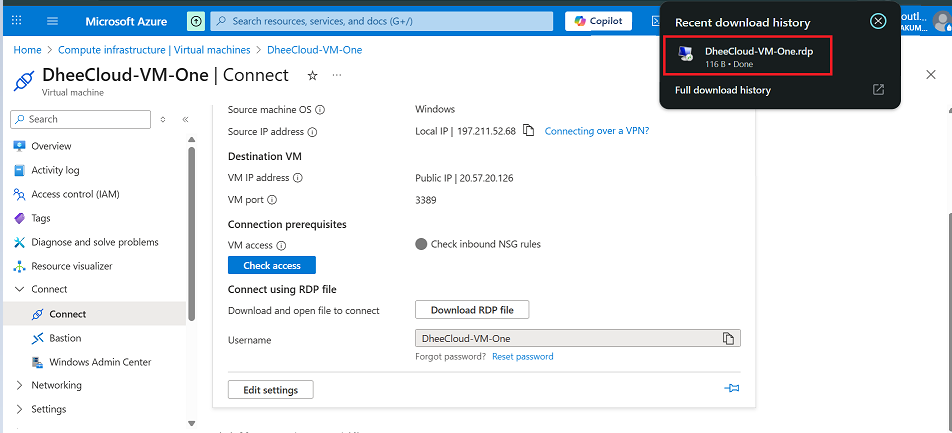

-Enter your password that you set while creating the Virtual Machine


-Follow the same steps and connect to your Second Virtual Machine

-Ping each other’s Private IP to confirm there is no communication
DheeCloud-VM-ONE: Private IP- 192.168.50.4
DheeCloud-VM-Too: Private IP- 192.168.60.4


Step 4: Configure VNet Peering
Set up virtual network peering between the two virtual networks to enable private communication between the virtual machines. Once peering is complete, the virtual machines should be able to communicate successfully.
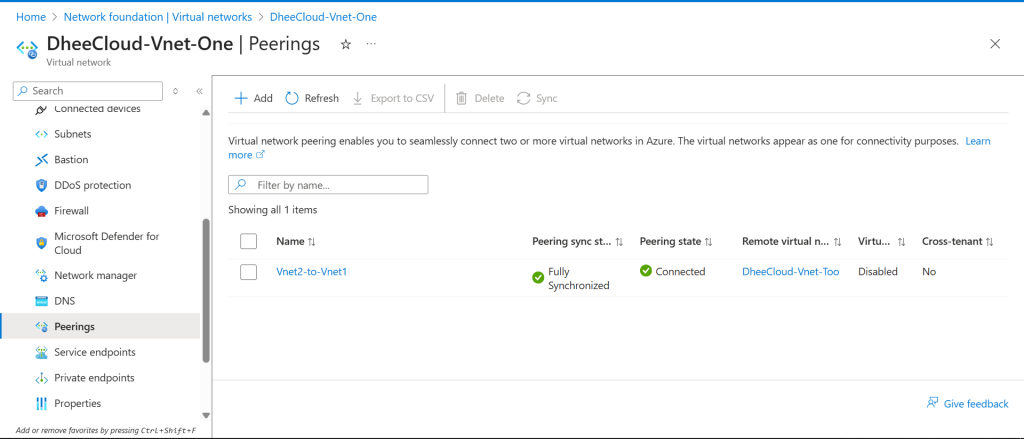
-Connect from DheeCloud-Vnet-One to DheeCloud-Vnet-Too


-Input the peering name, then select the virtual network you want to connect to
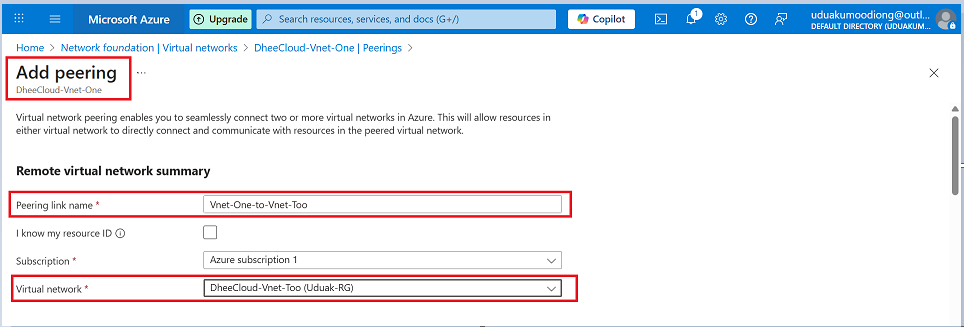
-Set it up so communication can happen both ways, then add the peering
 -You can check Vnet-Too to confirm if the peering is reflecting there

Step 5: Testing and Confirmation
Verify that the virtual machines in the different virtual networks can now communicate with each other, confirming that VNet peering has been configured successfully.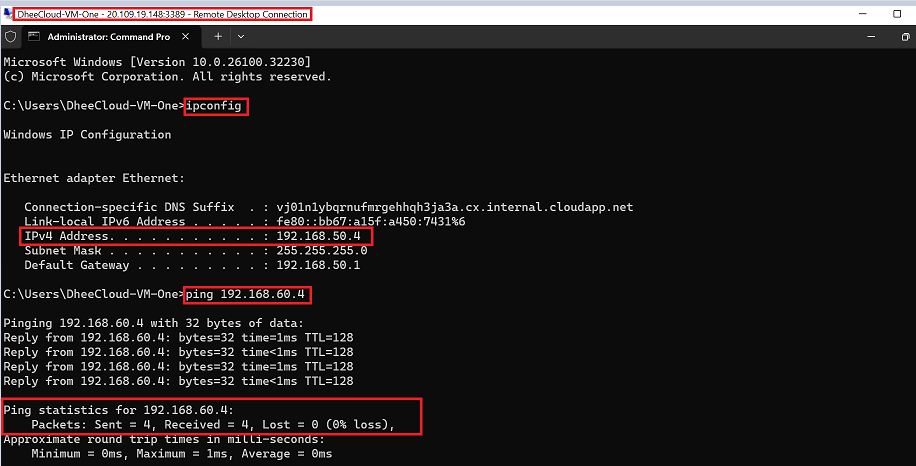

Note: On Windows Server, ICMP (ping) is blocked by default. Ensure the Windows Firewall allows ICMP echo requests, otherwise ping tests may fail even if peering is successful.
CONCLUSION
Azure Virtual Network (VNet) is the foundation of private networking in Azure, enabling secure communication between resources such as virtual machines. In many real-world scenarios, resources are deployed across different virtual networks within the same organization, creating the need for those networks to communicate. This is where VNet peering becomes essential, allowing virtual networks to connect seamlessly and enabling private communication between their resources. In this documentation, we walked through how to configure VNet peering step by step, so you can confidently apply the same approach whenever you need to enable communication between virtual networks in Azure.