-If you’re new to Linux, you may be wondering what exactly it is and why it plays such a critical role, especially for cloud engineers. At its core, Linux is an open-source operating system. But before diving into Linux itself, let’s briefly clarify what an operating system is. The concept isn’t as complex as it may sound; in fact, you already use one every day. Whether your device runs Windows, macOS, Android, or iOS, each of these is an operating system. Simply put, an operating system is the software that manages your computer’s hardware and software resources, serving as the foundation for all your activities.
-Linux traces its roots back to the UNIX operating system, developed in the 1970s. However, UNIX was proprietary and costly, which limited its accessibility. Recognizing that innovation thrives in open environments, the need arose for a free, open-source alternative inspired by UNIX’s design. In 1991, Linus Torvalds, a computer science student from Finland, began developing the Linux kernel, a free, open-source core that could run on personal computers. He released it publicly, inviting developers worldwide to contribute and improve it. When combined with GNU tools and other open-source software, this kernel evolved into the complete, community-driven Linux operating system we know today.
-Linux is widely valued because its open source nature allows individuals and organizations to freely modify and tailor the system to their specific needs, reduce licensing costs, and avoid vendor lock-in. This flexibility is the reason so many Linux distributions exist. Each distribution is built by taking the Linux kernel, combining it with different tools and configurations, and customizing it to serve particular use cases such as servers, desktops, security, or cloud environments.
-Linux can be operated through a Graphical User Interface (GUI), but it is most powerful when used via the command line interface (CLI). The CLI offers greater speed, efficiency, and control, making it the preferred method for system administration and development tasks, especially in cloud environments. To effectively interact with Linux, you need to know the essential commands. While there are hundreds of commands available, you don’t need to memorize them all to begin. This guide focuses on the fundamental commands that will help you get started. Once you master these basics, you can gradually advance to more complex and specialized commands.
-Before using commands, it’s important to understand where you will be entering them. The terminal, also called the shell, is a text-based interface that lets you interact directly with your operating system. Through the terminal, you can execute commands, run scripts, manage files, and control system processes without relying on a graphical interface. Unlike GUI tools, it provides direct access to advanced features and administrative functions. All commands in the terminal follow a standard format.
command [option(s)] [argument(s)]
The command is the action or program you want to run (e.g., ls, cp), options help you modify how the command behaves, usually prefixed by - or -- (e.g., -l, --help). Then Arguments sets targets or inputs for the command, such as filenames, directories, or devices.
-You should also understand the Linux file system. In Linux, everything is treated as a file, which keeps the system simple and consistent. Your personal files live in the /home directory, while / is the root that contains everything else. Linux is case sensitive, and files that start with a dot are hidden by default.
10 COMMANDS TO GET YOU STARTED WITH LINUX
i)pwd
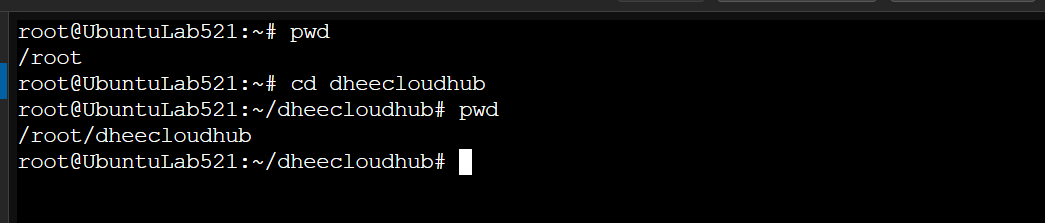
This command stands for present working directory and shows the directory you are currently in. It is similar to asking the terminal where you are at that moment.

ii)ls
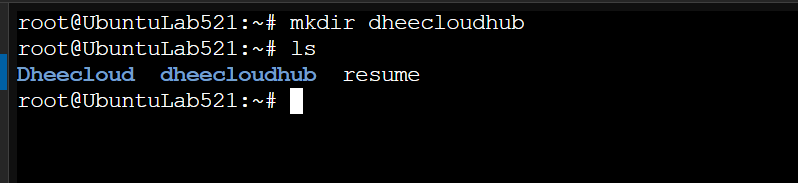
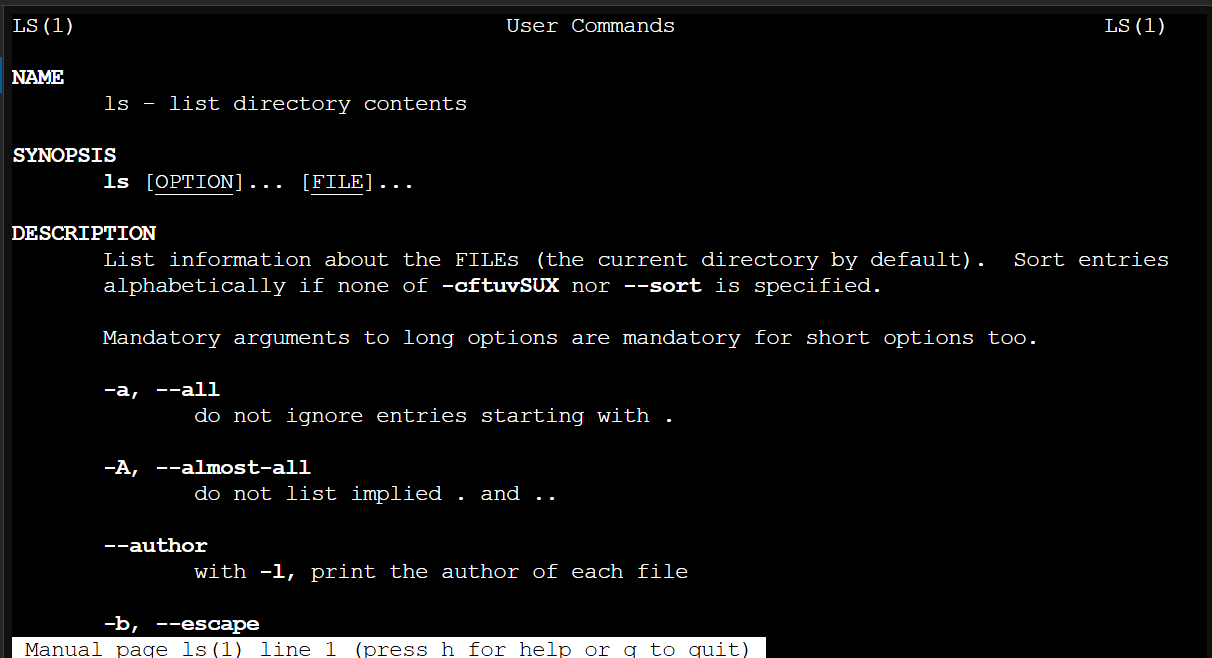
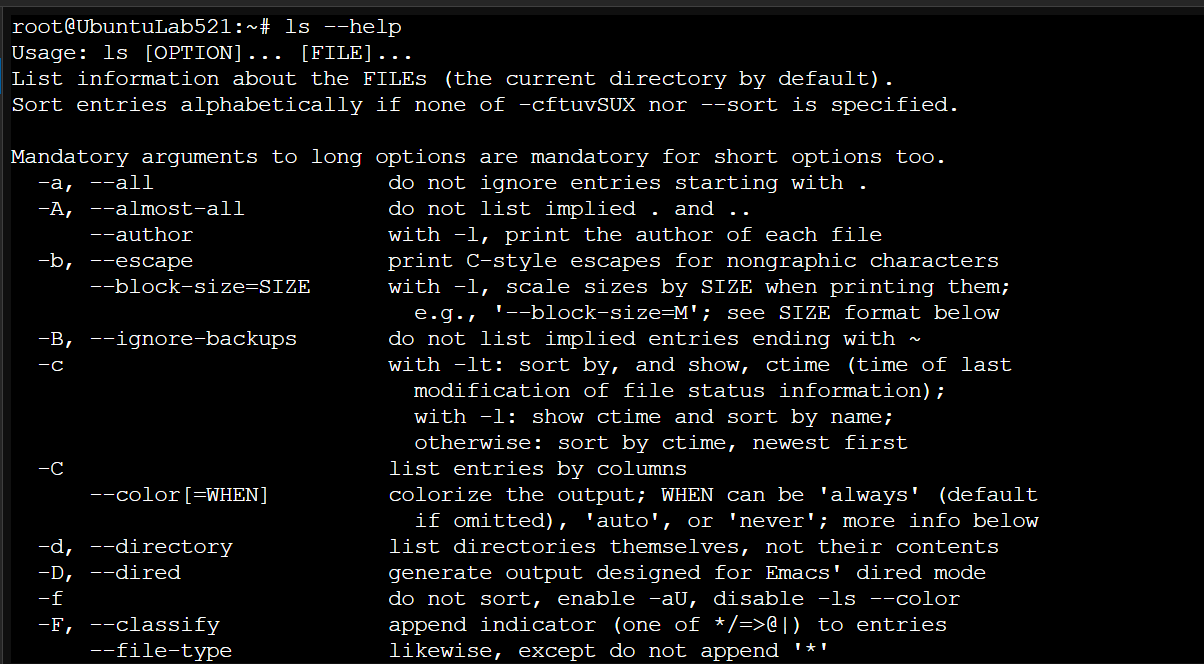
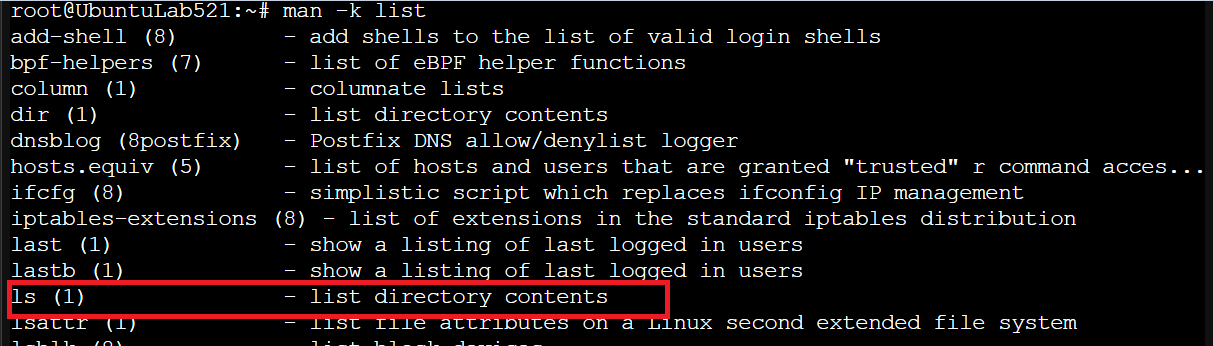
This command stands for list and shows all files and folders located in the directory you are currently working in.
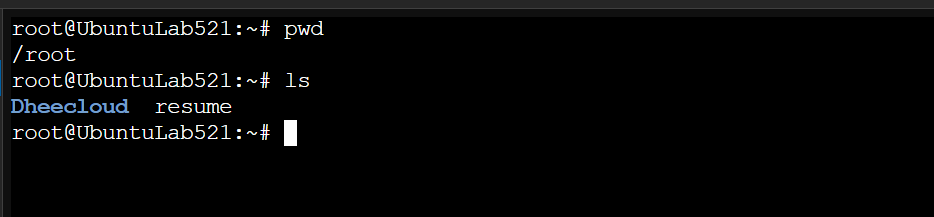 It is important to note that some files are hidden by default when you run this command, so not all files will be displayed unless you use
 ls -a.
 Another useful option is
ls -l, which lists the files and directories along with their permissions, ownership, and other details.
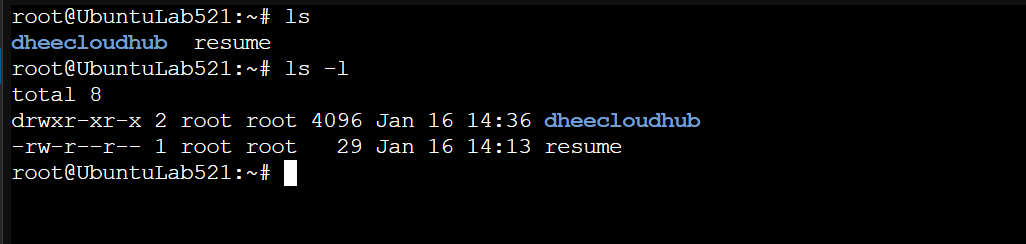 Explanation of the response: The first character shows the type:
 d means a directory, while - means a regular file. The next nine characters indicate permissions for the owner, group, and others, with r read, w write, and x for execution. The number that follows indicates the number of links the file or directory has. Next are the owner and group names, followed by the file size in bytes. The date and time indicate the last modification, and finally, the name of the file or directory is displayed. For example, in the line drwxr-xr-x 2 root root 4096 Jan 16 14:36 dheecloudhub, d indicates it is a directory, rwx means the owner can read, write, and execute, r-x shows the group can read and execute, the size is 4096 bytes, it was last modified on January 16 at 14:36, and the directory name is dheecloudhub. Similarly, -rw-r--r-- 1 root root 29 Jan 16 14:13 resume represents a regular file where the owner can read and write, the group and others can only read, the size is 29 bytes, and the file name is resume.
iii)whoami